

This is a “set it and forget it” rule. Once enabled, it automatically ranks locations by remaining capacity—no configuration needed in the routing settings.
How capacity rules work
Capacity is based on daily order limits you set for each location. Charlie tracks orders in real-time and calculates remaining capacity:Daily order counts reset automatically at midnight. Each day starts fresh with full capacity at all locations.
Setup overview
Capacity rules require two steps:- Configure daily order limits for each location (in Charlie)
- Enable the Capacity Rules routing rule (in Shopify Order Routing)
Step 1: Configure daily order limits
Daily order limits are configured per location in the Charlie app.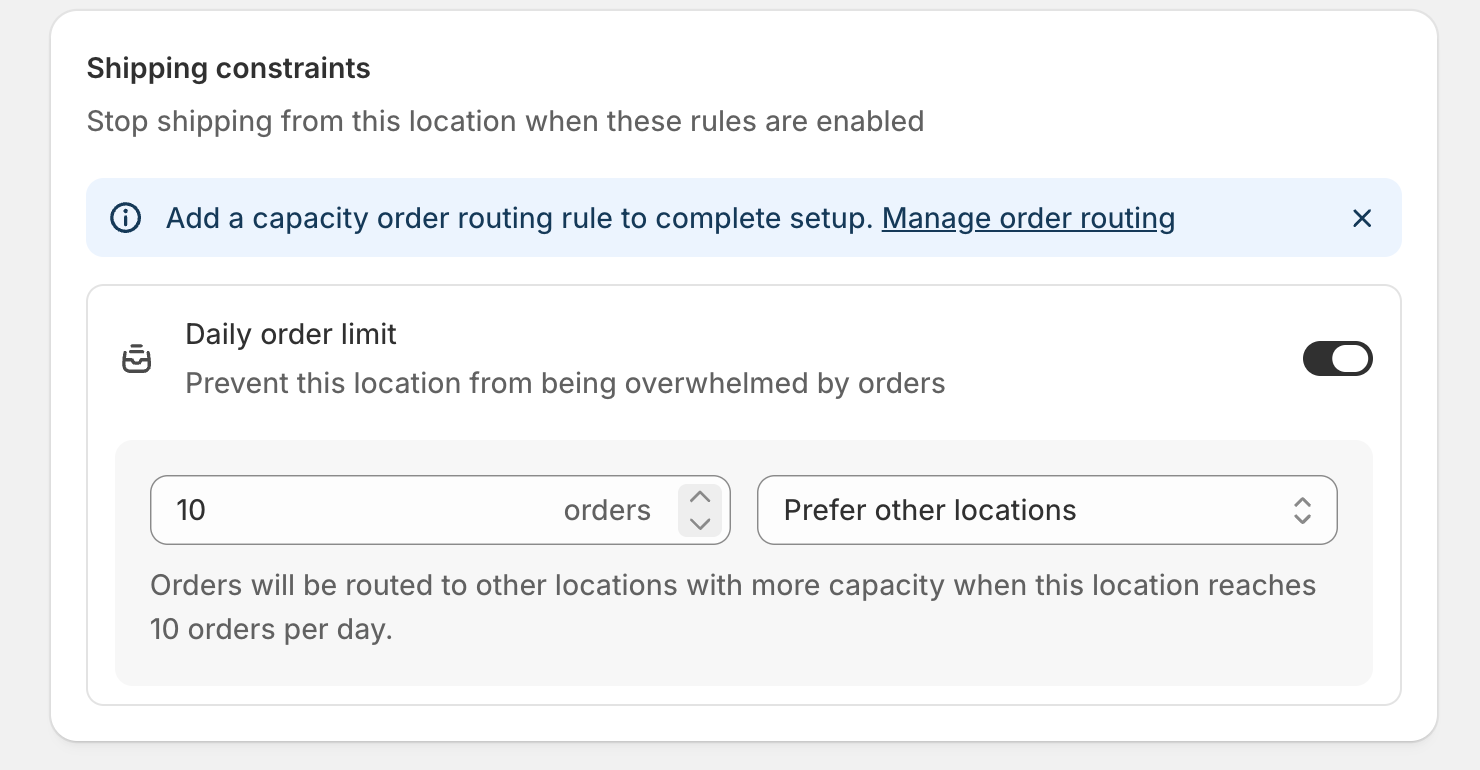
Set the limit and mode
Configure the capacity settings:
| Field | Description |
|---|---|
| Order limit | Maximum orders this location can handle per day |
| Capacity mode | What happens when the limit is reached |
Capacity modes
When a location reaches its daily order limit, you can choose what happens:| Mode | Effect |
|---|---|
| Prefer other locations | Orders are routed to other locations with more capacity. This location is deprioritized but not blocked. |
| Block location | This location is completely blocked from receiving new orders until the next day. |
Step 2: Enable the routing rule
Access order routing settings
Go to Charlie → Settings → Order routing or Shopify → Settings → Shipping and delivery → Order routing.
How ranking works
Real-time capacity tracking
Charlie tracks orders allocated to each location throughout the day:| Location | Daily limit | Orders today | Remaining | Rank |
|---|---|---|---|---|
| Warehouse A | 200 | 50 | 150 | 1 (highest) |
| Store Paris | 50 | 10 | 40 | 2 |
| Store Lyon | 30 | 20 | 10 | 3 |
| Store Nice | 20 | 18 | 2 | 4 (lowest) |
Locations without limits
Locations without a daily order limit configured are treated as having unlimited capacity. They won’t be deprioritized by this rule.Tie-breaking
When multiple locations have the same remaining capacity, they receive the same rank. Shopify then uses its default logic to choose between them.Example scenarios
Balance load across stores
Problem: Your busiest store gets overwhelmed while other stores have spare capacity. Setup:- Store A (high traffic): Daily limit = 100 orders
- Store B (medium traffic): Daily limit = 50 orders
- Store C (low traffic): Daily limit = 30 orders
Protect warehouse during peak season
Problem: During Black Friday, your warehouse reaches capacity early and can’t process more orders efficiently. Setup:- Warehouse: Daily limit = 500 orders, Mode = Prefer other locations
- Stores: Daily limit = 50 orders each
Strict capacity limits for small stores
Problem: Small stores can only process a fixed number of orders per day due to staff constraints. Setup:- Small stores: Daily limit = 20 orders, Mode = Block location
Combining with other rules
Capacity rules work best when combined with other routing rules:With Inventory Rules
Balance capacity and inventory together:- Inventory Rules: Prefer locations with more stock
- Capacity Rules: Among high-stock locations, prefer those with more capacity
With Ranked Location Groups
Use capacity as a secondary factor:- Ranked Location Groups: Warehouses (Group 1) → Stores (Group 2)
- Capacity Rules: Among warehouses, prefer those with more remaining capacity
With Customer Rules
Protect capacity for specific customer segments:- Customer Rules: B2B orders → Prefer Warehouse A
- Capacity Rules: Deprioritize locations nearing capacity
Best practices
Start with realistic limits
Base daily limits on actual fulfillment capacity—staff, equipment, and shipping cutoff times.
Use 'Prefer' for flexibility
Use “Prefer other locations” mode for most cases. Reserve “Block location” for hard operational constraints.
Monitor and adjust
Review capacity utilization regularly and adjust limits based on actual performance.
Plan for peak seasons
Increase limits before high-volume periods, or tighten them to protect fulfillment quality.
Troubleshooting
Orders not shifting away from busy locations
Orders not shifting away from busy locations
Check:
- Is the Capacity Rules routing rule enabled in Shopify Order Routing?
- Is the daily order limit configured for the location in Charlie?
- Has the location actually reached its limit? Check current order count.
- Is the capacity mode set to “Prefer other locations”?
- Are there other routing rules with higher priority overriding capacity rankings?
Location blocked unexpectedly
Location blocked unexpectedly
Check:
- Is the capacity mode set to “Block location” instead of “Prefer other locations”?
- Has the location reached its daily limit?
- Remember: counts reset at midnight. Check when the last reset occurred.
Capacity counts seem wrong
Capacity counts seem wrong
Check:
- Capacity is based on orders allocated to the location, not orders placed
- Orders may be allocated before payment is confirmed
- Cancelled orders may still count toward the daily total (depending on timing)
Daily limits not resetting
Daily limits not resetting
Daily limits reset automatically at midnight (based on your store’s timezone). If limits aren’t resetting:
- Check your store’s timezone settings in Shopify
- Verify Charlie’s sync is running correctly
- Contact support if the issue persists